Welcome. In this user guide, we are going to cover the basic navigations of Texmorph 1.1.0.
The user guide is for Texmorph on MacOS, however on iOS, the navigations are exactly the same.
Main Interface
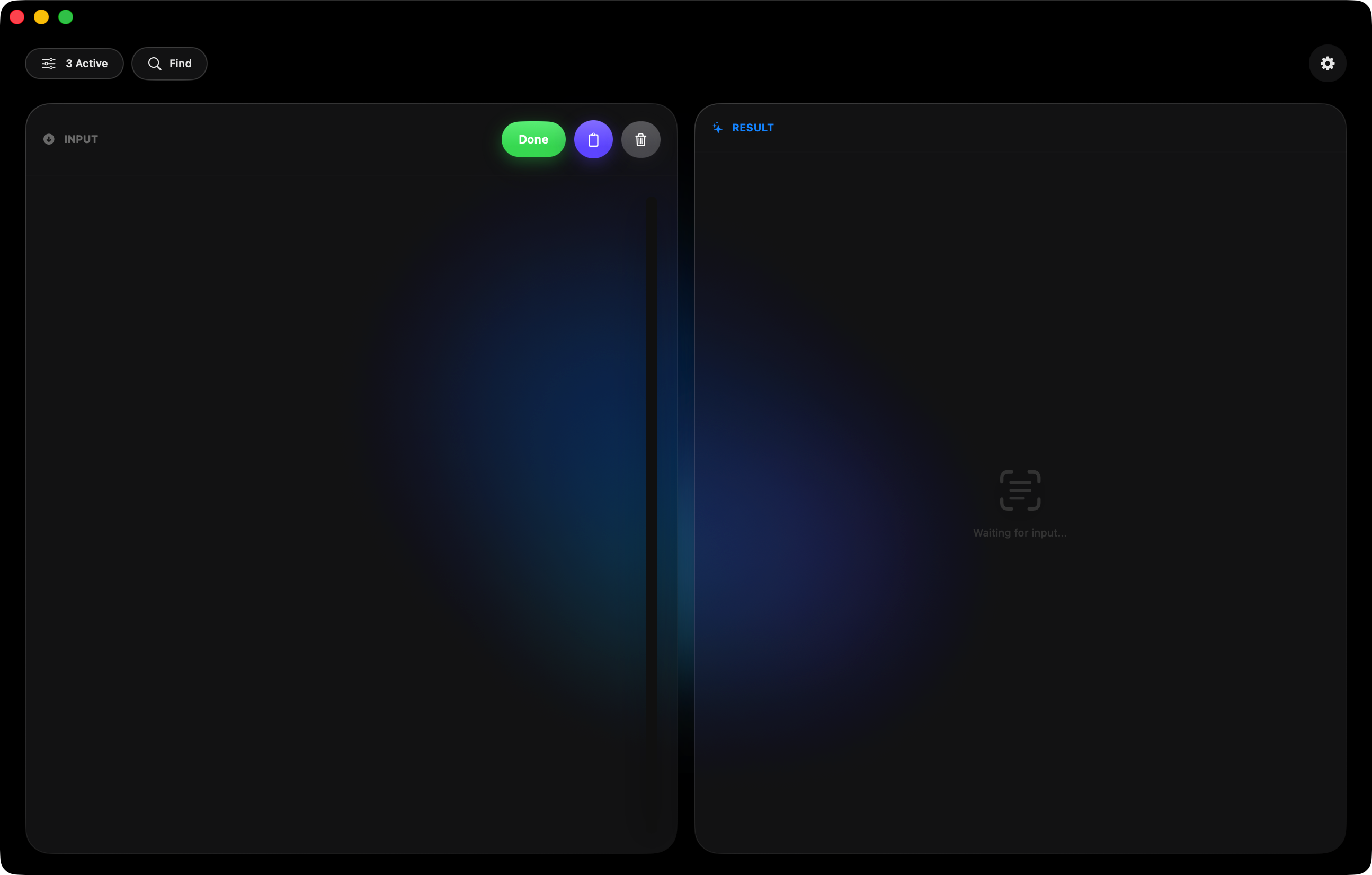
The main interface is divided into two panels:
Input (Left) - Paste or type your source text here. Use the clipboard button to paste from your clipboard, or the trash button to clear the input. Result (Right) - Your processed text appears here in real-time. Click “Copy” to copy the result to your clipboard.
At the bottom, you’ll see a character count summary showing how many characters were added or removed.Tip: Click “Show Diff” to highlight exactly what changed between your input and output. Removed text appears in red with strikethrough, and added text appears in green.
Ruleset Module
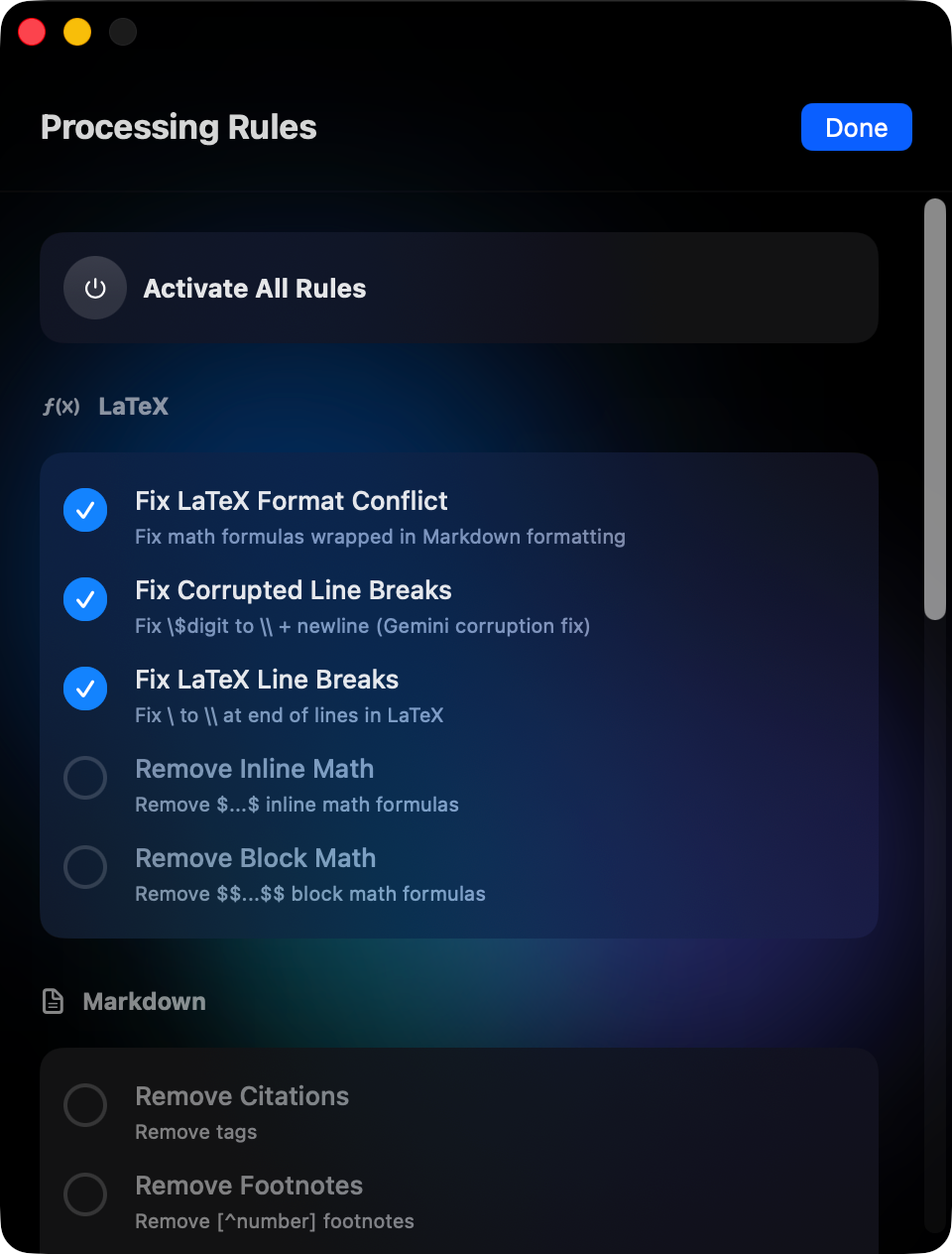
Click the “Active” button in the header to open the Processing Rules panel. Rules are organized into three categories:
LaTeX
Fix LaTeX Format Conflict - Removes accidental Markdown formatting around math formulas
Fix Corrupted Line Breaks - Repairs broken line breaks from copy-paste errors
Fix LaTeX Line Breaks - Converts single backslashes to double backslashes
Remove Inline/Block Math - Strips math delimiters while keeping content
Markdown
Remove Citations, Footnotes, Bold, Italic, Strikethrough, Inline Code
Remove Headings, Lists, Blockquotes, Links, Images
Code Cleanup
Remove Non-ASCII - Strips CJK characters, emojis, and special symbols
Remove // /* */ Comments - Cleans C-style comments (Swift, Java, JS, etc.)
Remove # Comments - Cleans hash comments (Python, R, Shell)
Remove Empty Lines - Deletes blank lines
Trim Trailing Whitespace - Removes spaces at end of lines
Toggle individual rules by clicking on them, or click a category header to enable/disable all rules in that category.
Find and Replace Module
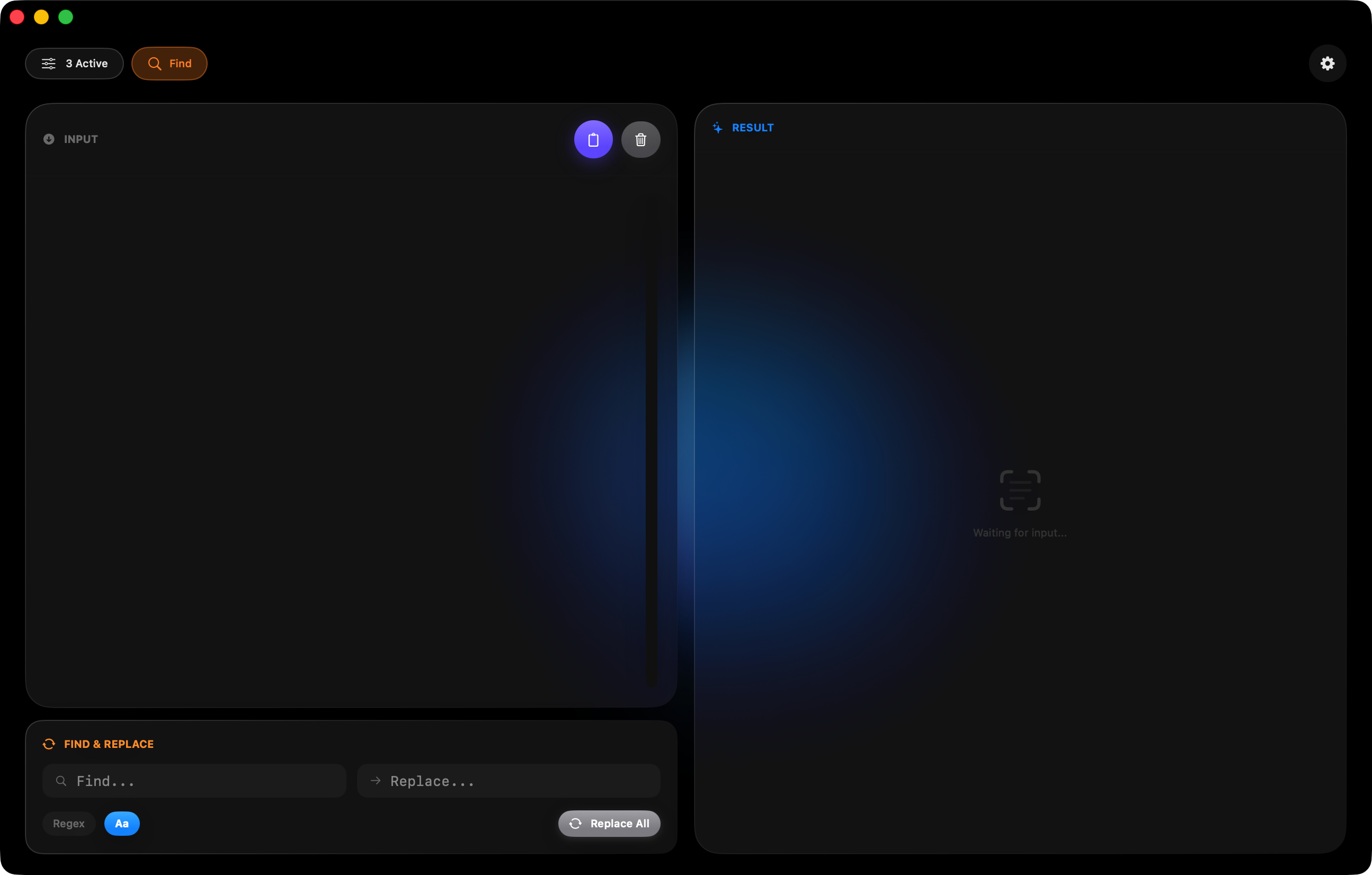
Click “Find” in the header bar to reveal the Find & Replace panel.
Find field - Enter the text you want to search for
Replace field - Enter the replacement text (leave empty to delete matches)
Regex toggle - Enable regular expression pattern matching
Aa toggle - Toggle case sensitivity
The match count updates in real-time as you type. Click “Replace All” to perform the replacement.
Apply to Input button (purple): After replacing, click this button to copy the result back to the input panel. This allows you to chain multiple find-and-replace operations.
Workflow Example:
- Paste your text in the Input panel
- Find “hello” → Replace with “world” → Click Replace All
- Click the purple button to apply result to input
- Find “world” → Replace with “universe” → Click Replace All
- Copy your final result
Setting Module
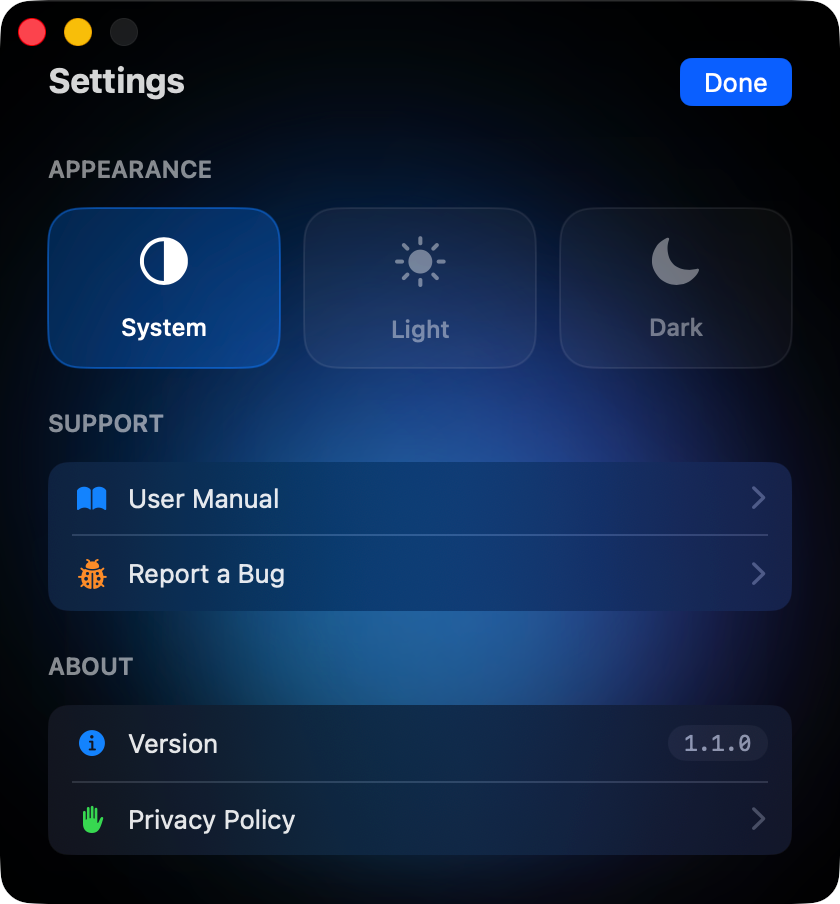
Click the gear icon in the header to access Settings. Appearance Choose between System, Light, or Dark mode. Your preference is saved automatically. Support
- User Manual - Opens this guide
- Report a Bug - Opens your email client with a pre-filled bug report template
⠀About
- Version information
- Privacy Policy link
And that’s it! You’re now ready to use Texmorph.
If you have any questions or encounter issues, use the “Report a Bug” option in Settings.
© 2026 Zixiang Zhang, All Right Reserved.