Welcome to the quick start guide of Rhylm MacOS, beta version 1.1.0.
As the design follows the minimalistic language just like iOS, when the first time you open it, it could be a bit confused. This quick start guide aim to provide an intuitive quick start for the MacOS version of Rhylm.
Main Interface & Right Click Options

Click the menubar “diamond” icon to open Rhylm.
- Click the diamond on panel to start playing sound; click again to stop. Double click to switch to the next noise type.
alternatively, when panel is open, right click and navigate to noise selection, and select the noise you wish to play, will play the noise immediately.
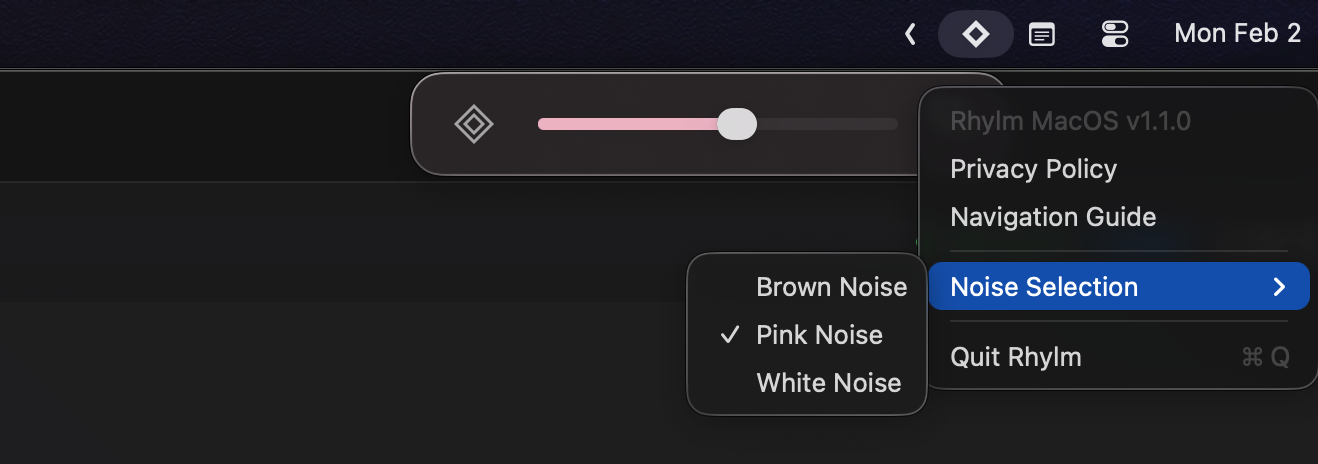
Right click when panel is open, and select “quit” allows you to exit Rhylm.
You need to first click the Rhylm icon and then right click to bring out the option.
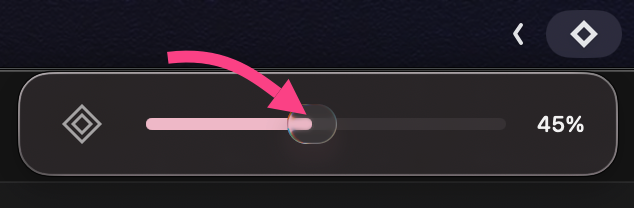
Dragging the volume bar allows you to adjust volume freely.
Useful Tps
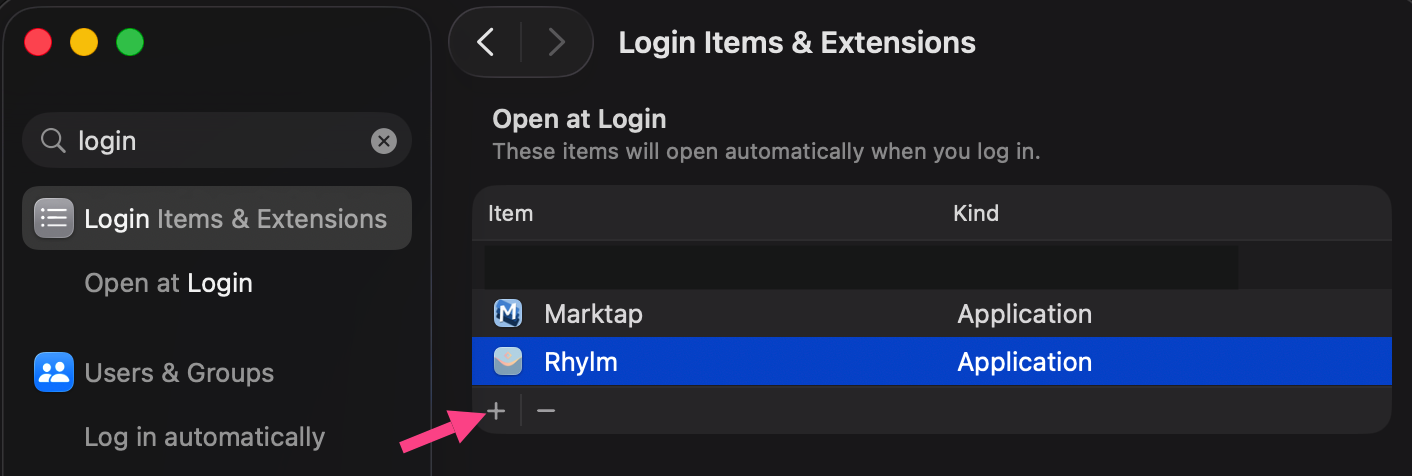
If you wish to open Rhylm every time you log into your Mac, you can add it in the login items. Search “login items” on the system settings search bar and then click that “+” button.
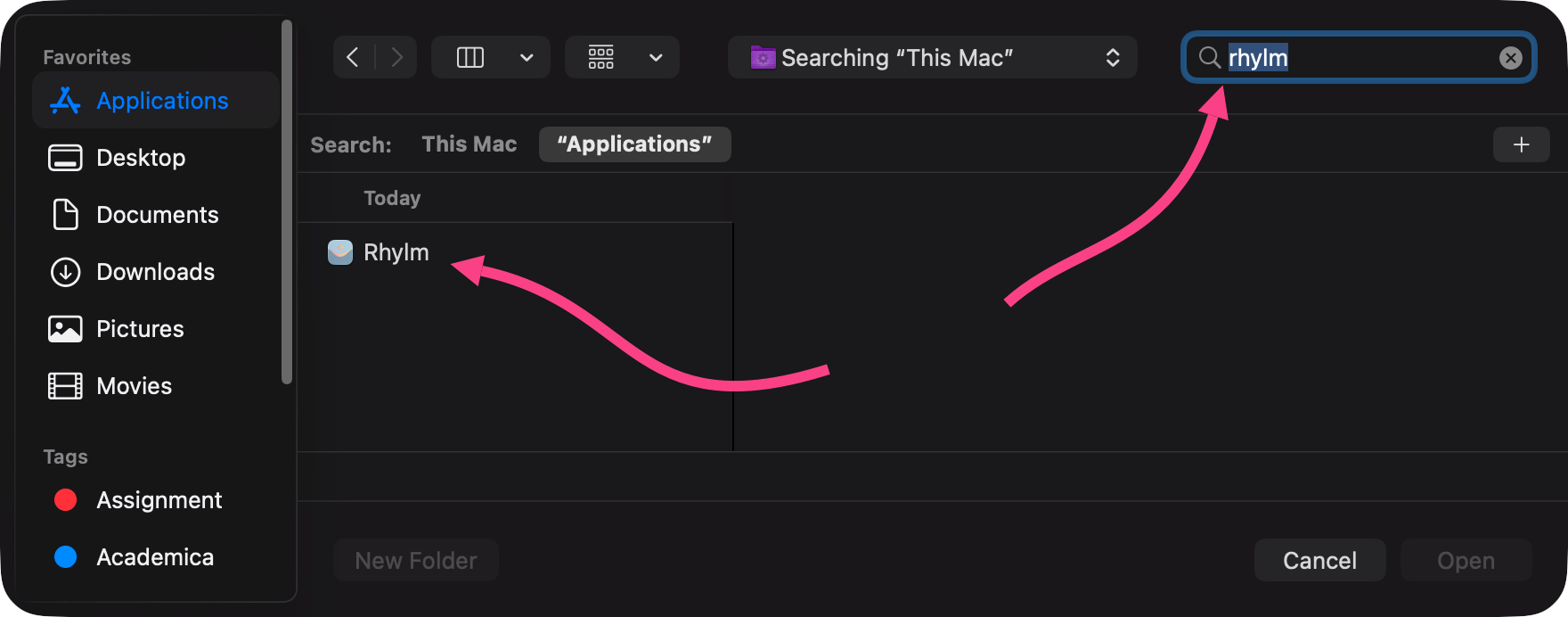
Find the Rhylm by searching it in your Application folder.
Rhylm for MacOS is designed with an emphisis for you to stay focused and mask out all distractions for you via the noise soundscape. Hope you will enjoy its accompany with you throghout your focus sessions.
© 2026 Zixiang Zhang, All Right Reserved.