Inserable is an image management and Markdown editing tool designed specifically for Hugo static blogs. It helps you automatically standardize image naming, manage the association between images and articles, and streamline your blog writing workflow.

Video QuickStart Guide
You can watch these series of short QuickStart Guide of Inseravle and see how it work in actions.
Inserable QuickStart 1: Basic Navigations
Other videos coming soon…
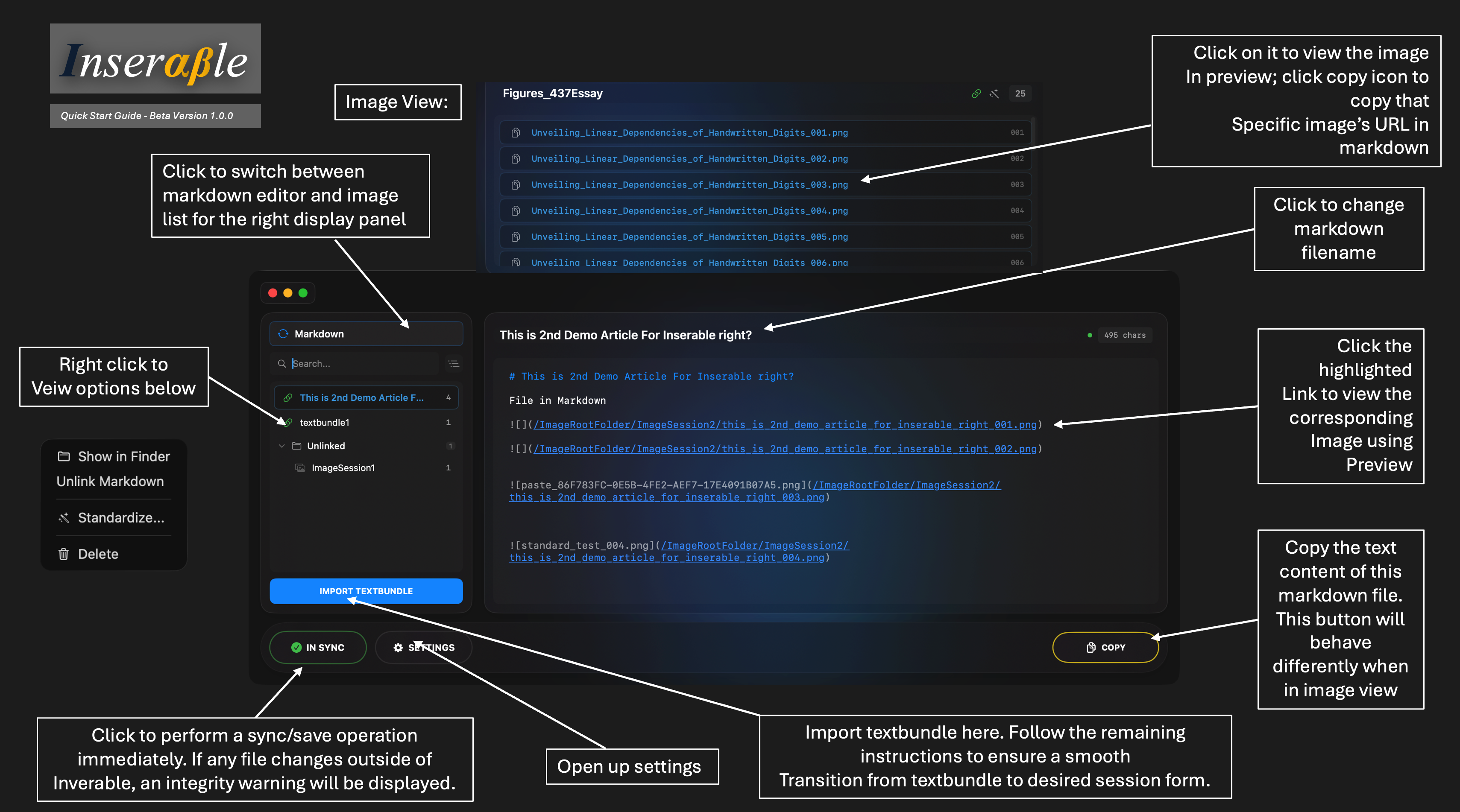
QuickStart Picture Manual - Main Interface
Inserable English User Manual
Beta Version 1.0.0
Table of Contents
- Initialization
- Core Concepts
- Interface Introduction
- Sync, Mirror and Integrity
- Basic Operations
- Utilities
- Settings Description
- Frequently Asked Questions
Initialization
The initialization contains 3 steps.
- Open Inserable and click the SETTINGS button at the bottom.
- Set Image Root Folder: Select the folder where images are stored in your Hugo site (usually
static/images). - Set Markdown Root Folders: Click Add to include your article directories (usually
content/posts).
Only one Image folder could be chosen as the root image folder, but markdown folder could have multiple.
Note: If you see a pop up notification that prevents you from selecting the root folder, don’t worry. See Utility section. A tool called “One-Tap Mapping” is designed to help you get started in seconds.
After setting up the root folders, Inserable will read every existing files and identify their connections. After that, sessions will be created automatically and you don’t need to manually mapping them.
Core Concepts
Session
A Session is the core unit of Inserable, representing a combination of an article and its related images:
- Each Session corresponds to a folder under the Image Root.
- By default, if you used One-Tap mapping to clean scattered image files, the organized folder naming will be in this format:
<article_name>_session_folder. - Relationship between session’s image folder and its corrosponding markdown is strictly bijective, meaning each session is unique for themselves.
Once a session relationship is is established between a Session Image Folder and a Session Markdown file:
- Edits in Inserable are synchronized to the Markdown file.
- Pasting images automatically inserts the correct reference path.
Standardized Naming
In initialization / One-Tap Mapping / Automatic Standardization, inserable by default, renames images into a unified format:
<article_title>_001.png
<article_title>_002.png
<article_title>.png
This allows
- Images are arranged in sequence.
- Easy to reference in Markdown.
- Avoids issues caused by special characters.
Sync, Mirror and Integrity
Inserable was born in the purpose of making your workflow of blog tidy and clean. To achieve this, I enforce the formate of Session Folders to be structured and clean, with no scattered images in the same catalogue of the session folders. Also, when you move something outside of Inserable, it will notice the alter of the files and ask you if this is intentional by poping up a warning window, like the one below:
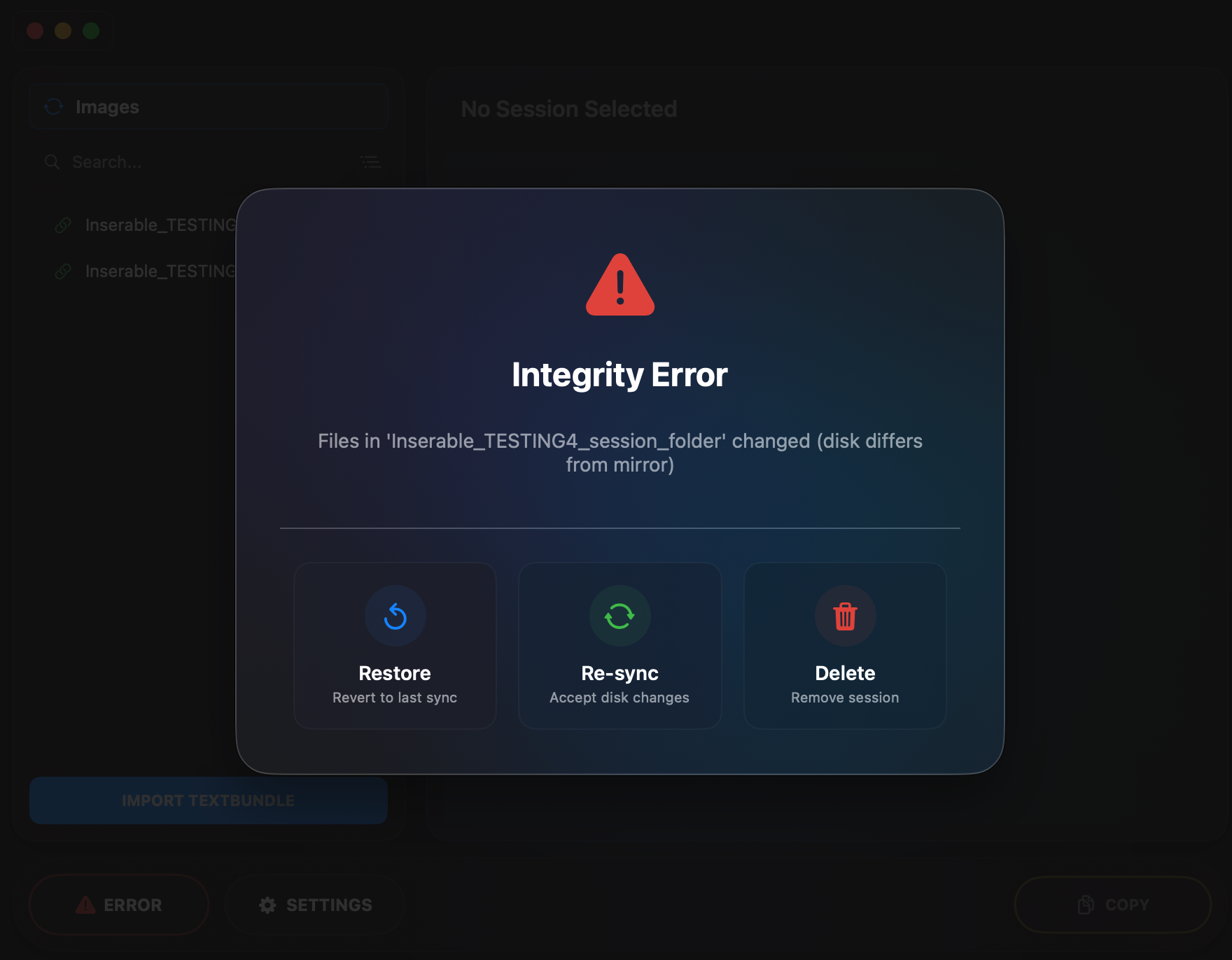
When you saw this, you have 3 options to choose.
If you altered files outside of Inserable with intentions:
You should use the second option: Re-Sync. This tells Inserable that it’s okey to see the changes, and letting it treat the status of files and folders right now as the latest reference of “unbroken Inserable”. Nothing will happen after you clicked “Re-Sync”, and the current state of files will be backed up into the mirror storage of Inserable.
If you didn’t realised the files has been changed, or you did this unintentionally, and you want to restore to previous state:
I know some people will encounter this situation, like accidentaly deleted some file/folders that related to other content. Just like the collapsing of dependencies I triggered while I was developing Inserable, which brought me endless nightmares, I don’t want this happen to you. That’s why we have the first option: Restore.
Inserable backs up the latest state of your file into a mirror storage, and it checks if anything alters from the mirror storage without informing Inserable. When refering to “informing Inserable”, it means that you changed the name of files(including pictures, session folders and so on)using Inserable instead of doing this in Finder on your own.
If you choosed this option, all your files will restore to the last Sync that Inserable knows, i.e., the mirror image will become the current state of your folder. Also it’s good to know that every single operation you did in Inserable is treated as “Sync”. If you messed up something inside Inserable, like you deleted tons of images and you can’t “Cmd+Z” now, you will have to go to the recycle bin and retrieve them(Inserable never deletes your files directly, the way it delete files is to move them to trash).
If you simply don’t wanna see this session again
Click third option: Delete. Inserable will move the session into trash and then performs a sync to notify itself treating current state of folder as the reference state without integrity issue.
Reminder: Session is the concept of “bijection between markdown and image session folder”, so this action moves both markdown and session folder into trash. Just keep this in mind so you don’t lost something unconsciouselly.
TL;DR:
View it as a backup system and file manager that always keep track of your stuff and force you to stay tidy and organized for the folders. If you forgot to “git commit” and you accidentally messed up something, Inserable has got your back.
Interface Introduction
Left Side: Session List
- Displays all Sessions grouped by folder hierarchy. This is done automatically. You can toggle “list/folder” view to switch between list view or view sessions in group that determined by their markdown’s classifications with respect to markdown folders.
- In folder view, Click the folder tab to expand or collapse folders.
- Green link icons indicate the existence of session relaationshop, while grey image folder indicates that there is no active session relationship for them/
Right Side: Image/Markdown View
Two view modes (switch via the rotation tab next to the title):
Images View
- Displays all images in the Session.
- Supports drag-and-drop to add new images. Simply drag images from folder. If the session is standardized, dragged image will be indexed and renamed automacally. You can copy their URL and paste where you wish them to be in the markdown file, by simply switching and start editng in markdown view.
- Double-click the title to rename the Session (this will also synchronizes image filenames and URLs in Markdown).
Markdown View
- Preview window is at same time a simple editor. It allows editing of the bound Markdown content.
- Inserted image URLs will be highlighted. Click on the to use
- Double-click the title to rename the Markdown file. This will not affact the integrity of session.
- Supports direct image pasting (Cmd+V) if you have any in your paste pannel. This will move the image into the file, and the link in URL format will appear where you placed your mouse.
Note that drag and drop into markdown editor is currently not supported. This feature may be implement in the future.
Bottom Bar
Three buttons are presented here:
- IN SYNC: Data synchronization status indicator. Click to manually perform an integrity check and scan the files to see if any new session relation could be established.
- SETTINGS: Opens the settings panel.
- COPY: Copies the content of the current view. In image view, it will be the list of all image URLs presented, with the change log if any. Change log will disappear the second time you click the copy button if nothing changes between your first click and second click.
Basic Operations
Adding New Images to a Session’s Markdown File
Method 1: Drag and Drop
- Select the target Session.
- Drag images into the image view right panel.
- Images are automatically standardized and added to the Session.
- copy the new image’s URL by click copy icon on the left side of its tab
- paste it in desired location of the markdown file in markdown editor.
Method 2: Copy Image Itself and Paste in Markdown Editor
- Copy desired image before switching to Markdown View.
- Place the cursor where you want to insert the image.
- Copy an image or screenshot and press Cmd+V.
- The image is automatically saved and the reference is inserted.
Renaming
Rename Session (Images View)
- Double-click the title to enter edit mode.
- Enter the new name and press Enter.
- Automatically updates: folder name, all image filenames, and URL paths in Markdown.
Rename Markdown File (Markdown View)
- Double-click the title to enter edit mode.
- Enter the new name and press Enter.
- Only renames the Markdown file itself.
Delete Session
- Select the Session.
- Right-click or use the delete button.
- Confirm deletion.
Deletion will move both target image session folder and markdown file into trash simultaneousely.
Utilities
One-Tap Mapping
One-Tap mapping is often used if Inserable refuse to set image root folder. This utility will reformat the image root folder to the compatiable form that Inserable could read and use. It will automatically migrate existing image folders to Inserable management:
- Click UTILITY → One-Tap Mapping.
- The application scans all folders under the Image Root.
- Automatically matches image references in Markdown files.
- Completes migration and binding with one click.
- Inserable will save the operation log and a copy of files it altered and moved into your download folder.
- To be more precise, you will see a folder looks like this: “Inserable_OneTap_2026-01-26_18-14-47”, and when you click in, you will see the operation log as well as the auto backup, so you know exactly what Inserable did to your files and when you want to retrive the changes, you will have the original files to use.
- This feature requires you to grant access of your Mac’s download folder to Inserable. But, the data will not be collected by Inserable or me, as it’s just an easier way for you to find operation logs. I’m working on an update to allow you select your destination log folder in the coming version. But now, it’s fixed to the download folder of system.
Note that One-Tap Mapping at this time, require your files that scattered in the image folder of your selection to be in the format of below:

Note that “images” is not a placeholder name, it’s fixed as this is the current default of Hugo blog folder settings for everyone. Inserable strictly follows this search criteria so it don’t mess other unrelated files into the URL linking process.
However, I’m aware of the reduced flexibilities this design brought and I’m working on alternative solution that could both preserve the precision of matching and binding as well as bringing you more flexibilities in terms of file formats.
Automatica Standardization
Process unstandardized Sessions all at same time:
- Click UTILITY → Standardize All.
- All unstandardized Sessions will be processed automatically.
The default format of this standardization has been explained on previous sections.
TextBundle Import
Supports importing from TextBundle format, this transforms Textbundle file into a session directly:
- Click IMPORT TEXTBUNDLE.
- Select the .textbundle file.
- Fillin settings. Here, the bottom part of settings will be presented in Hugo header form, as Inserable is optimized for Hugo workflows at present.
- Inserable will automatically extracts images and Markdown content. Then, session relationship is established between them.
I plan to add support to various of other workflows and file formats that needs constantly managing and remapping URLs. For now, Hugo is the only target for the optimization.
Settings Description
Image Root Folder
The root directory containing all Session image folders.
Recommended to set as the static/images directory of your Hugo site, but you can also set it elsewhere, as long as it satisfies the requirement of Inserable.
Markdown Root Folders
The root directories containing Markdown articles. Supports adding multiple folders..
Recommended to set as the content/posts directory of your Hugo site.
Appearance
- Dark Mode: Switch between dark and light themes.
- Background Effect: Toggle dynamic background effects.
General
- Delete original images: Whether to delete original images after processing.
- Delete original folders: Whether to delete original folders after processing.
- Auto-Save Every 5 minutes: Sync current file status every 5 minutes.
About
- Information window that leads you to the as privacy policy and user manual(which is what you are reading right now).
- No eastern eggs. Maybe there will be in the future, I don’t know.
Frequently Asked Questions
Q: No response when pasting images?
A: Ensure:
- A Session is selected.
- You are currently in Markdown View.
- The cursor is within the text editing area.
Q: Image URL not pulling the Preview after clicking?
A: Indicates the image file does not exist. Possible reasons:
- Image was manually deleted.
- Session was renamed but Markdown was not synchronized.
Solution: Click Standardize to re-synchronize.
Q: How to handle existing blog images?
A: Use the One-Tap Mapping feature for one-click migration.
Q: What image formats are supported?
A: Supports PNG, JPG, JPEG, GIF, and WebP. All images will be automatically converted to PNG format.
Q: Where is the data stored?
A:
I priortizes privacy of everyone in all the applications I developed. In unnecessary circumstances, your data will never be collected. This might varies in different applications of mine. For Inserable, I don’t collect your data. That means:
- Images are stored in your configured Image Root Folder.
- Session metadata is stored within application support of your Mac.
- Markdown files are stored in your configured Markdown Root Folders.
The operation log of Inserable as well as a back up copy of the files it altered and moved, will be saved to your Download folder in your Mac, as mentioned before.
For detailed privacy policy, visit About tab in settings, or here
Feedback? Suggestions? Bugs?
Send me an email. I’ll check them often. Appreciate your support in making Inserable better with me!
- Email: kircerta [at] gmail [dot] com
Again, thank you for using Inserable. Hope it helps you in some ways or another!
With Love, Zixiang Zhang Jan19, Inserable Beta 1.0.0
Last Updated: Jan 26, 2025
Alpha 1.0.1 Upcoming Change Preview
Added Git Commit & Push short cut stratight into the Inserable. cmd + shift + c will trigger the shortcut so you only need to enter the commit message and Inserable will call the terminal for you. Then you only need to paste and push. However you will first need to set your root folder of Git.
Fixed dark/light mode switch latency of text display.
Optimized the algorithm of matching session & markdown. Now root picture folder is not enforced to be named “images”.
Optimized Log saving logic. You can select your desired log saving path now instead of saving it to download folder by default. However, Inserable now needs you to do this manually before you start using it, as I canceled the request for accessing the download folder in entitlements.
Added header toggle option.
other great features coming soon.